The Road to Delphi

Delphi – Free Pascal – Oxygene


3 Comments

VCL Styles for NSIS

Important Update

The new location of this project is https://code.google.com/p/vcl-styles-plugins/

NSIS

The VCL Styles Utils project, now includes  a plugin (dll) to skin the installers created by NSIS (2.46 and 3.0). The current size of the plugin is about 1.6 mb, but when is included (and compressed) in the script only add ~550 Kb to the final installer.

output_A6NOFn

How to use it

To use the plugin in a NSIS installer you must call the LoadVCLStyle function passing the skin name in the .onInit function.

Function .onInit
  InitPluginsDir
  ;Get the skin file to use
  File /oname=$PLUGINSDIR\Amakrits.vsf "..\Styles\Amakrits.vsf"
  ;Load the skin using the LoadVCLStyle function
  NSISVCLStyles::LoadVCLStyle $PLUGINSDIR\Amakrits.vsf
FunctionEnd

To use the plugin in a NSIS Uninstaller you must call the LoadVCLStyle function passing the skin name in the un.onInit function.

Function un.onInit
  InitPluginsDir
  File /oname=$PLUGINSDIR\Amakrits.vsf "..\Styles\Amakrits.vsf"
  ;Load the skin using the LoadVCLStyle function
  NSISVCLStyles::LoadVCLStyle $PLUGINSDIR\Amakrits.vsf
FunctionEnd

For download and more info check the page of the plugin


26 Comments

VCL Styles Utils and Popup Menus – Major Update

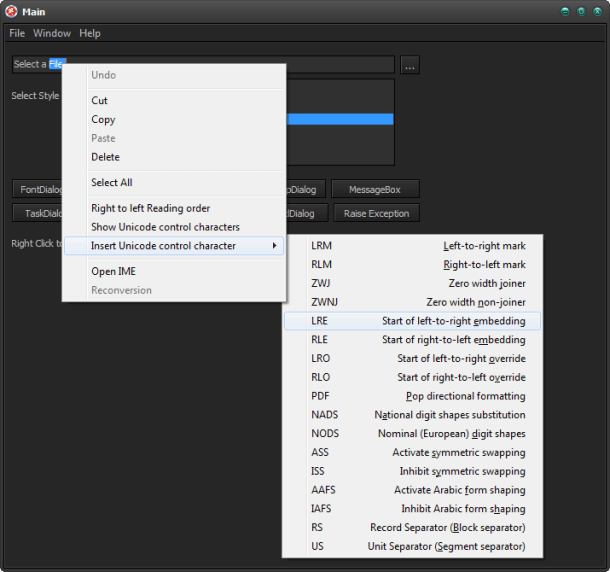
As you probably know the VCL Styles doesn’t support  Popup menus, this means if you apply any VCL Style  to your VCL Application  the popup menus will remain with the Windows native look and feel  (exists some workarounds for this like use a TPopupActionBar  as described here, but this only works partially, and doesn’t support the child menus of a TMainMenu) Since Sometime ago the VCL Styles Utils project can help you to overcome this limitation adding support for VCL Styled Popup Menus.

Now we just uploaded a major update to the VCL Styles Utils project. This new version fix all the issues reported via mail and the issue page related the PopUp menus like support for  the Break property, Checkboxes,  Radio Items,  Default items and so on.

Sample images

TMainMenu with VCL Styles

1

TMainMenu with VCL Styles and VCL Styles Utils

2

Popup Menu with VCL Styles

3

Popup Menu with VCL Styles and VCL Styles Utils

4

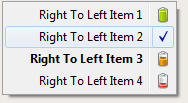
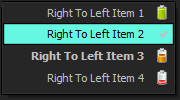
Right to left Popup Menu with VCL Styles

5

Right to left Popup Menu with VCL Styles and VCL Styles Utils

6

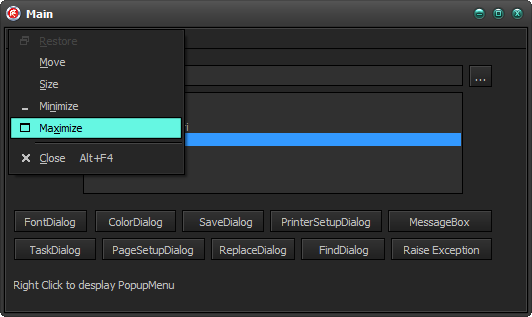
System Menu with VCL Styles

7

System Menu with VCL Styles and VCL Styles Utils

8

To add support for VCL Styled Popup Menus in your Application only you must add these units to your project Vcl.Styles.Utils.Menus, Vcl.Styles.Utils.SysStyleHook and Vcl.Styles.Utils.SysControls.

You can download sample application from here and the source of the Application is here.


49 Comments

VCL Styles for Inno Setup

Introduction

As part of the VCL Styles Utils project, I made a plugin (dll) to skin the installers created by Inno setup. The current size of the plugin is about 1.6 mb, but when is included (and compressed) in the script only add ~490 Kb to the final installer.

output_qkRcra

How to use it

In order to use the plugin you must follow these steps

  1. Add the VclStylesinno.dll file to your inno setup script and the VCL Style file to use.
  2. Import the function LoadVCLStyleW for Unicode versions of Inno setup or the LoadVCLStyleA method for the Ansi version
  3. Import the function UnLoadVCLStyles
  4. In the InitializeSetup function extract the style to use and call the LoadVCLStyle method passing the name of the style file
  5. Finally in the DeinitializeSetup function call the UnLoadVCLStyles method.

Check the next sample script

[Files]
Source: ..\VclStylesinno.dll; DestDir: {app}; Flags: dontcopy
Source: ..\Styles\Amakrits.vsf; DestDir: {app}; Flags: dontcopy

[Code]
// Import the LoadVCLStyle function from VclStylesInno.DLL
procedure LoadVCLStyle(VClStyleFile: String); external 'LoadVCLStyleW@files:VclStylesInno.dll stdcall';
// Import the UnLoadVCLStyles function from VclStylesInno.DLL
procedure UnLoadVCLStyles; external 'UnLoadVCLStyles@files:VclStylesInno.dll stdcall';

function InitializeSetup(): Boolean;
begin
  ExtractTemporaryFile('Amakrits.vsf');
  LoadVCLStyle(ExpandConstant('{tmp}\Amakrits.vsf'));
  Result := True;
end;

procedure DeinitializeSetup();
begin
  UnLoadVCLStyles;
end;

TODO

  • Add support for TFolderTreeView and TStartMenuFolderTreeView components
  • Add support for themed controls in the TNewCheckBoxList component
  • Add support for the npbstMarquee style in the TNewProgressBar component

Source code and Installer

The source code and installer is available on Github.

As always all your comments and feedback is welcome.


17 Comments

VCL Styles Utils Project – New Addition : Patch for System colors.

Introduction

A result of the work in a new sub project of the VCL Styles Utils , many new features as been added to the library, One of my favorites is a patch for the GetSysColor WinApi function. This fix replace the original call to this function by a jump to the StyleServices.GetSystemColor method replacing the original system colors by the current VCL Style colors. One of the advantages of use this fix is which the controls uses the proper VCL Style highlight color.

Screenshots

Check these controls with the VCL Styles

full

Now using the Vcl.Styles.Hooks unit

Full_Fix

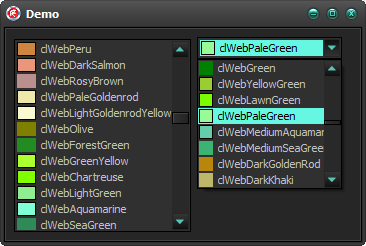
TColorBox

ColorBox ColorBox_Fix

Source Code

This is the actual source code of the Vcl.Styles.Hooks unit which includes the patch to the GetSysColor function. To use this unit in your code you must add the KOLDetours unit too.

unit Vcl.Styles.Hooks;

interface

implementation

uses
  KOLDetours,
  WinApi.Windows,
  Vcl.Styles,
  Vcl.Themes;

var
  TrampolineGetSysColor:  function (nIndex: Integer): DWORD; stdcall;
  GetSysColorOrgPointer : Pointer = nil;

function InterceptGetSysColor(nIndex: Integer): DWORD; stdcall;
begin
  if StyleServices.IsSystemStyle then
   Result:= TrampolineGetSysColor(nIndex)
  else
   Result:= StyleServices.GetSystemColor(nIndex or Integer($FF000000));
end;

initialization
 if StyleServices.Available then
 begin
   GetSysColorOrgPointer  := GetProcAddress(GetModuleHandle('user32.dll'), 'GetSysColor');
   @TrampolineGetSysColor := InterceptCreate(GetSysColorOrgPointer, @InterceptGetSysColor);
 end;
finalization
 if GetSysColorOrgPointer<>nil then
  InterceptRemove(@TrampolineGetSysColor, @InterceptGetSysColor);

end.


31 Comments

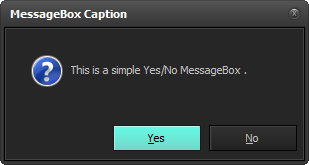
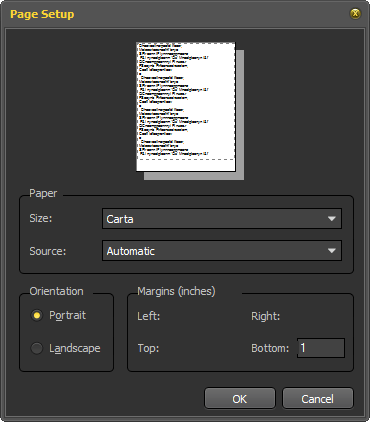
The VCL Styles Utils Project now supports dialogs and popup menus

Two missing parts of the standard VCL Styles is the lack of the capacity to theme the popup menus and the standard Windows dialogs. I started to work a year ago in the dialogs area, but due to my limited time I was not able to finish that. But a few months ago I receive a very interesting mail from Mahdi Safsafi (SMP3) that show me his own work on this topic. So we decided merge the code of his project and the VCL Styles Utils. So finally the VCL Styles Utils project was updated to support standard dialogs, popup and system menus.

How it works?

The key is using a WH_CBT Hook, detecting the HCBT_CREATEWND and HCBT_DESTROYWND codes and then checking if the class of the window is #32770 (the class for a dialog box.) or the #32768 (the class for a popupmenu) from here you can replace the window procedure (WndProc) using the SetWindowLongPtr function with the GWL_WNDPROC index. Now we have the control of the messages sent by the windows dialogs and menus and we can iterate over the child controls and replace the window procedure again using the GWL_WNDPROC index. Finally depending of the class of the control (button, syslistview32, Combobox and so on) a Wrapper class (like the VCL does) is created to handle the messages related to the paint of the control.

Check the next source code which install the hook and process the Win32 controls

unit Vcl.Styles.SysControls;

interface

implementation

uses
  Winapi.Windows,
  System.Generics.Collections,
  System.SysUtils,
  Vcl.Controls,
  Vcl.Dialogs,
  Vcl.Styles,
  Vcl.Themes,
  Vcl.Styles.PopupWnd,
  Vcl.Styles.EditWnd,
  Vcl.Styles.StaticWnd,
  Vcl.Styles.ThemedDialog,
  Vcl.Styles.ToolbarWindow32Wnd,
  Vcl.Styles.SysListView32Wnd,
  Vcl.Styles.ButtonWnd,
  Vcl.Styles.UnknownControlWnd,
  Vcl.Styles.ControlWnd,
  Vcl.Styles.ComboBoxWnd,
  Vcl.Styles.ToolTipsWnd;

type
  TThemedSysControls = class
  private
  class var
    FBalloonHint: TBalloonHint;
    FPreviousSysBtn: Integer;
    FPreviousHandle: THandle;
    FHook: HHook;
  protected
    class function HookActionCallBack(Code: Integer; wParam: wParam;
      lParam: lParam): LRESULT; stdcall; static;
    procedure InstallHook;
    procedure RemoveHook;
  public
    constructor Create; overload;
    destructor Destroy; override;
  end;

var
  MenuItemInfoArray: array of TMenuItemInfo;
  TooltipsWndList: TObjectDictionary<HWND, TooltipsWnd>;
  PopupWndList: TObjectDictionary<HWND, TPopupWnd>;
  StaticWndList: TObjectDictionary<HWND, TStaticWnd>;
  DialogWndList: TObjectDictionary<HWND, TDialogWnd>;
  EditWndList: TObjectDictionary<HWND, TEditWnd>;
  ComboBoxWndList: TObjectDictionary<HWND, TComboBoxWnd>;
  UnknownControlList: TObjectDictionary<HWND, TUnknownControlWnd>;
  ToolbarWindow32WndList : TObjectDictionary<HWND, TToolbarWindow32Wnd>;
  SysListView32WndList : TObjectDictionary<HWND, TSysListView32Wnd>;
  BtnWndArrayList : TObjectDictionary<HWND, TButtonWnd>;
  ThemedSysControls: TThemedSysControls;

{ TThemedSysControls }

constructor TThemedSysControls.Create;
begin
  inherited;
  FBalloonHint := TBalloonHint.Create(nil);
  FBalloonHint.Style := bhsStandard;
  FBalloonHint.Delay := 1500;
  FBalloonHint.HideAfter := 3000;
  FPreviousHandle := 0;
  FHook := 0;
  InstallHook;
  PopupWndList:= TObjectDictionary<HWND, TPopupWnd>.Create([doOwnsValues]);
  TooltipsWndList:= TObjectDictionary<HWND, TooltipsWnd>.Create([doOwnsValues]);
  StaticWndList:= TObjectDictionary<HWND, TStaticWnd>.Create([doOwnsValues]);
  DialogWndList:= TObjectDictionary<HWND,TDialogWnd>.Create([doOwnsValues]);
  EditWndList:= TObjectDictionary<HWND, TEditWnd>.Create([doOwnsValues]);
  ComboBoxWndList:= TObjectDictionary<HWND, TComboBoxWnd>.Create([doOwnsValues]);
  UnknownControlList:= TObjectDictionary<HWND, TUnknownControlWnd>.Create([doOwnsValues]);
  ToolbarWindow32WndList:= TObjectDictionary<HWND, TToolbarWindow32Wnd>.Create([doOwnsValues]);
  SysListView32WndList := TObjectDictionary<HWND, TSysListView32Wnd>.Create([doOwnsValues]);
  BtnWndArrayList := TObjectDictionary<HWND, TButtonWnd>.Create([doOwnsValues]);
end;

destructor TThemedSysControls.Destroy;
begin
  RemoveHook;

  PopupWndList.Free;
  TooltipsWndList.Free;
  StaticWndList.Free;
  DialogWndList.Free;
  EditWndList.Free;
  ComboBoxWndList.Free;
  UnknownControlList.Free;
  ToolbarWindow32WndList.Free;
  SysListView32WndList.Free;
  BtnWndArrayList.Free;

  FBalloonHint.Free;
  inherited;
end;

class function TThemedSysControls.HookActionCallBack(Code: Integer;
  wParam: wParam; lParam: lParam): LRESULT;
var
  Msg: TMOUSEHOOKSTRUCT;
  C: array [0 .. 256] of Char;

  procedure HideSysToolTip;
  var
    hSysToolTip: THandle;
  begin
    For hSysToolTip := 65550 To 65600 do
      begin
        If IsWindowVisible(hSysToolTip) then
          begin
            GetClassName(hSysToolTip, C, 256);
            ShowWindow(hSysToolTip, SW_HIDE);
          end;
      end;
  end;

  procedure ShowToolTip(HintTitle: String);
  begin
    HideSysToolTip;
    if FPreviousSysBtn <> Integer(Msg.wHitTestCode) then
      begin
        FBalloonHint.HideHint;
        FBalloonHint.Title := HintTitle;
        FPreviousSysBtn := Msg.wHitTestCode;
        FBalloonHint.ShowHint(Msg.pt);
      end;
  end;

var
  CBTSturct: TCBTCreateWnd;
  sClassName : string;
begin
    if (StyleServices.Enabled) and not (StyleServices.IsSystemStyle) then
    begin
      if Code = HCBT_SYSCOMMAND then
        begin
          FBalloonHint.HideHint;
          FPreviousSysBtn := 0;
        end
      else
      if Code = HCBT_DESTROYWND then
      begin
        sClassName := GetWindowClassName(wParam);
          if sClassName = '#32768' then
          {PopupMenu}
          begin
            if PopupWndList.ContainsKey(wParam) then
              PopupWndList.Remove(wParam);
            //OutputDebugString(PChar('remove PopupWndList count '+IntToStr(PopupWndList.Count)));
          end
          else
          if sClassName = '#32770' then
          {Dialog}
          begin
            if DialogWndList.ContainsKey(wParam) then
              DialogWndList.Remove(wParam);
            //OutputDebugString(PChar('remove DialogWndList count '+IntToStr(DialogWndList.Count)));
          end
          else
          if sClassName = 'Button' then
          {Button}
          begin
            if BtnWndArrayList.ContainsKey(wParam) then
              BtnWndArrayList.Remove(wParam);
            //OutputDebugString(PChar('remove BtnWndArrayList count '+IntToStr(BtnWndArrayList.Count)));
          end
          else
          if (sClassName = 'ScrollBar') or (sClassName = 'ReBarWindow32') {or (sClassName = 'ToolbarWindow32')} then
          begin
            if UnknownControlList.ContainsKey(wParam) then
              UnknownControlList.Remove(wParam);
          end
          else
          if sClassName = 'SysListView32' then
          begin
            if SysListView32WndList.ContainsKey(wParam) then
              SysListView32WndList.Remove(wParam);
          end
          else
          if sClassName = 'ToolbarWindow32' then
          begin
            if ToolbarWindow32WndList.ContainsKey(wParam) then
              ToolbarWindow32WndList.Remove(wParam);
          end
          else
          if sClassName = 'Edit' then
          begin
            if EditWndList.ContainsKey(wParam) then
              EditWndList.Remove(wParam);
          end
          else
          if sClassName = 'Static' then
          begin
            if StaticWndList.ContainsKey(wParam) then
              StaticWndList.Remove(wParam);
          end
          else
          if sClassName = 'ComboBox' then
          begin
            if ComboBoxWndList.ContainsKey(wParam) then
              ComboBoxWndList.Remove(wParam);
          end
          else
          if sClassName = 'tooltips_class32' then
          begin
            if TooltipsWndList.ContainsKey(wParam) then
              TooltipsWndList.Remove(wParam);
          end
      end
      else
      if Code = HCBT_CREATEWND then
        begin
          CBTSturct := PCBTCreateWnd(lParam)^;
          sClassName := GetWindowClassName(wParam);
          //PopupMenu
          if Integer(CBTSturct.lpcs.lpszClass) = 32768 then
              PopupWndList.Add(wParam, TPopupWnd.Create(wParam))
          else
          //Dialog
          if Integer(CBTSturct.lpcs.lpszClass) = 32770 then
            begin
              if (CBTSturct.lpcs.cx <> 0) and (CBTSturct.lpcs.cy <> 0) then
                DialogWndList.Add(wParam, TDialogWnd.Create(wParam))
            end
          else
          if sClassName = 'Button' then
              BtnWndArrayList.Add(wParam, TButtonWnd.Create(wParam))
          else
          if (sClassName = 'ScrollBar') or (sClassName = 'ReBarWindow32') {or (sClassName = 'ToolbarWindow32')} then
              UnknownControlList.Add(wParam, TUnknownControlWnd.Create(wParam))
          else
          if sClassName = 'SysListView32' then
              SysListView32WndList.Add(wParam, TSysListView32Wnd.Create(wParam))
          else
          if sClassName = 'ToolbarWindow32' then
            begin
              if not UseLatestCommonDialogs then
                ToolbarWindow32WndList.Add(wParam, TToolbarWindow32Wnd.Create(wParam));
            end
          else
          if sClassName = 'Edit' then
              EditWndList.Add(wParam, TEditWnd.Create(wParam))
          else
          if sClassName = 'Static' then
            begin
              { This condition can solve the Edit animated cursor : see ColorDialog !! }
              if (CBTSturct.lpcs.Style and SS_ICON <> SS_ICON) and
                (CBTSturct.lpcs.Style and SS_BITMAP <> SS_BITMAP) and
                (CBTSturct.lpcs.Style and SS_GRAYRECT <> SS_GRAYRECT) and
                (CBTSturct.lpcs.Style and SS_GRAYFRAME <> SS_GRAYFRAME) then
                  StaticWndList.Add(wParam, TStaticWnd.Create(wParam));
            end
          else
          if sClassName = 'ComboBox' then
            ComboBoxWndList.Add(wParam, TComboBoxWnd.Create(wParam))
          else
          if sClassName = 'tooltips_class32' then
            TooltipsWndList.Add(wParam, TooltipsWnd.Create(wParam))
        end
    end;
  Result := CallNextHookEx(FHook, Code, wParam, lParam);
end;

procedure TThemedSysControls.InstallHook;
begin
  FHook := SetWindowsHookEx(WH_CBT, @TThemedSysControls.HookActionCallBack, 0, GetCurrentThreadId);
end;

procedure TThemedSysControls.RemoveHook;
begin
  if FHook <> 0 then
    UnhookWindowsHookEx(FHook);
end;

initialization

  ThemedSysControls:=nil;
  if StyleServices.Available then
    ThemedSysControls := TThemedSysControls.Create;

finalization

if Assigned(ThemedSysControls) then
    ThemedSysControls.Free;


end.

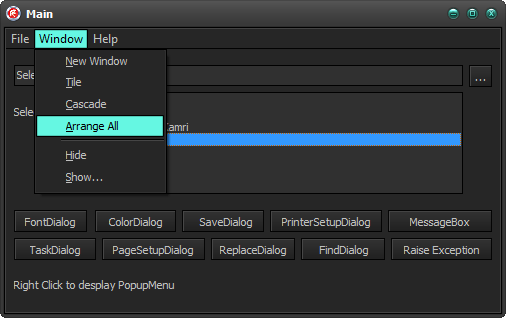
Menus

Standard TMainMenu with VCL Styles Enabled.
1

using the Vcl.Styles.SysControls unit
4

SysMenu with VCL Styles Enabled.

3

using the Vcl.Styles.SysControls unit

6

System menu with VCL Styles Enabled.

2

System menu using the Vcl.Styles.SysControls unit
5

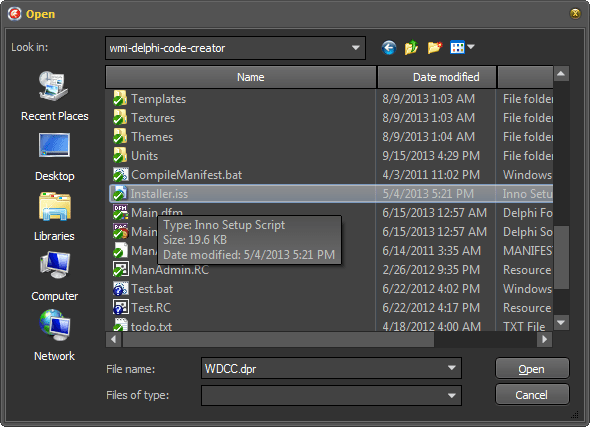
Dialogs

Open Dialog With VCL Styles enabled

8

Open Dialog using the Vcl.Styles.SysControls unit
9

Even the shell menu inside of the dialog is themed

dialog_full

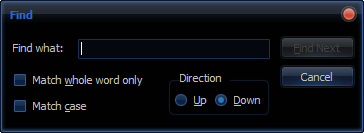
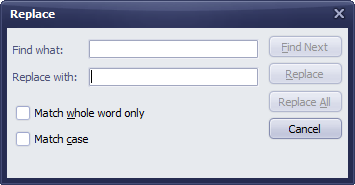
Others Dialogs

11

15

14

13

12

10

You can activate this functionality in your apps just adding the Vcl.Styles.SysControls unit to your project. Also a new sample project was added to test all the new features.

As always all your comments and suggestions are welcome.


2 Comments

Vcl Styles Utils updated to fix QC #114040, #114032 (XE2 and XE3)

I just commit in the Vcl Styles Project two new fixes to patch the QC 114040 and QC 114032 (these issues exist in Delphi XE2 and XE3), both reports are related to the Highlight colors used to draw the TColorBox and TComboBoxEx components when the Vcl Styles are active.

QC 114032

As you can see in the below image the TColorBox component doesn’t use the proper highlight color, but the TColorListBox uses the highlight color of the current Vcl Style.
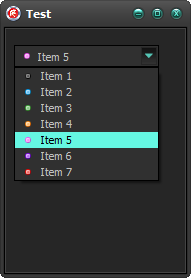
TColorBoxQC

The TColorBox control doesn’t use a Style Hook, so the fix was done using a interposer class. To apply the path just add the Vcl.Styles.Fixes unit to your uses list after of the Vcl.ExtCtrls unit. And the result will be

TColorBoxFix

QC 114040

The TComboBoxEx control have a similar issue.

TcomboboxExQc

In this case fixing the Style Hook related to the TComboBoxEx control was the key.

TcomboboxExFix

To apply this fix, just register the TComboBoxExStyleHookFix style hook located in the Vcl.Styles.Fixes unit.


4 Comments

Added new vcl style hook to the Vcl Styles Utils to fix QC #108678, #108875 (XE2 and XE3)

I just added a new vcl style hook (TListViewStyleHookFix) for the TListView component in the Vcl Styles Utils project to fix the QC #108678, #108875 (XE2 and XE3)

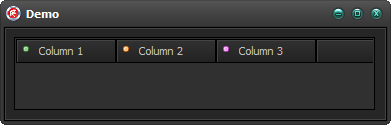
The issue reported in both reports, is that the images are not displayed in the TListView header with the VCL Styles enabled.

When you uses the Windows Theme in a TListView with images in the header will look like so

LVWindows

But if you enable the Vcl Styles, the images in the header are lost.

LVStyles2

The issue is located in the TListViewStyleHook.DrawHeaderSection method, this method must paint the image and text of each section of the header of the ListView.

This is part of the code with the bug

  ...
  ...
  ImageList := SendMessage(Handle, HDM_GETIMAGELIST, 0, 0);
  Item.Mask := HDI_FORMAT or HDI_IMAGE;
  InflateRect(R, -2, -2);
  if (ImageList <> 0) and Header_GetItem(Handle, Index, Item) then
  begin
    if Item.fmt and HDF_IMAGE = HDF_IMAGE then
      ImageList_Draw(ImageList, Item.iImage, Canvas.Handle, R.Left, R.Top, ILD_TRANSPARENT);
    ImageList_GetIconSize(ImageList, IconWidth, IconHeight);
    Inc(R.Left, IconWidth + 5);
  end;
  ...
  ...

The problem with the above code is that the SendMessage function with the HDM_GETIMAGELIST message (which is used to get the current imagelist) is not using the proper Handle. The above code is passing the handle of the ListView, but must pass the handle of the Header control, the same applies to the call to the Header_GetItem method.

The TListViewStyleHookFix introduces a new DrawHeaderSection method which passes the handle of the header control and fix the issue. You can use this Stylehook adding Vcl.Styles.Fixes unit to you uses clause and then register the hook on this way.

initialization
   TStyleManager.Engine.RegisterStyleHook(TListView, TListViewStyleHookFix);

LVStylesFix


2 Comments

How customize the fonts of a TActionMainMenuBar and TPopupActionBar with the VCL Styles Enabled

This week I received two emails from different Delphi developers asking about : How customize the fonts of a TActionMainMenuBar and TPopupActionBar with the Vcl Styles Enabled? Also a question about the same topic was asked in StackOverflow.

This post shows how this task can be done.

In order to change the font and size of a TActionMainMenuBar and a TPopupActionBar in a VCL application you must use the Screen.MenuFont property like so.

  Screen.MenuFont.Name := 'Impact';
  Screen.MenuFont.Size := 12;

But if the Vcl Styles are enabled these changes are not reflected (This is because the Vcl Styles uses the fonts defined in style file).

Now if you want change the font type or font size of the Vcl Styles elements related to the menus like MenuItemTextNormal, MenuItemTextHot and so on, you will use the Style Designer and set font values which you want.

But unfortunately this will not work either, I mean even if you edit the fonts of the Vcl Style file, the changes are not reflected in the Menus components (or others controls). The reason for this is that the Vcl Styles Engine ignores the fonts types and font size defined in the style file. and just use the font color value to draw the text of the controls.

Note : The font used by the Vcl Styles is Tahoma and the Size is 8.

So what is the solution for customize the font of a TActionMainMenuBar component? A possible workaround is create a new Action Bar Style and also create a new TCustomMenuItem and TCustomMenuButton to override the DrawText method and draw your self the menu text using the Screen.MenuFont values, the good news are which since now, you can find a implementation of a new Action Bar Style in the <a href="https://github.com/RRUZ/vcl-styles-utils/blob/master/Common/Vcl.PlatformVclStylesActnCtrls.pas unit (which is part of the VCL Styles Utils project) which allows you to modify the font of the TActionMainMenuBar and TPopupActionBar components.

So to use this new Action Bar Style, just add the Vcl.PlatformVclStylesActnCtrls unit to your project and then assign the new style to your Action Manager like so :

  ActionManager1.Style:=PlatformVclStylesStyle;

And now when you run your app the TActionMainMenuBar and TPopupActionBar will use the font defined in the Screen.MenuFont property.