Just released: a new version of DITE 1.98.1.1 with support for RAD Studio 12 Athens.


Just released: a new version of DITE 1.98.1.1 with support for RAD Studio 12 Athens.
New version of DITE with support for RAD Studio 11 Alexandria.

Hi guys, I just uploaded a new version of DITE with support for RAD Studio 10.4 Sydney

The themes now are imported into the RAD Studio registry and recognized by the IDE.

Looking for the installer? Check the Github Release Area
Hello Guys, a new version of the VCL Styles Utils was released, the main changes for this update are :

Thank you very much for all the contributors especially to Rickard Johansson (rickard67), salvadordf and luebbe
Rodrigo.
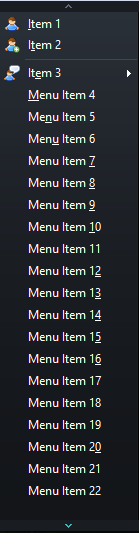
Hello, I just uploaded a new version of the VCL Styles Utils library which include 2 important fixes for the styled menus.
Rodrigo.
A few days ago KSDev launched a new site, DelphiStyles.com, this new place offers new FMX and VCL Styles. I tested the VCL Styles bundle and are just great, the themes looks modern, sleek and polished.
So if you are looking for a professional looking FMX/VCL styles for you application this is the place to go.
Check out the TOpenDialog component styled using the VCL Style Utils and the DelphiStyles themes.


Thanks very much to the guys from DelphiStyle (KSDev) which kindly donated a VCL Styles bundle to The Road to Delphi.
Rodrigo.
Hi, I just uploaded a new version of DIC (Delphi IDE Colorizer) with support for RAD Studio 10.2 Tokyo.
Check the next screenshot of the Delphi IDE styled with the Glossy VCL Style.

Also since some days ago a new version of DITE is available with support for RAD Studio 10.2 Tokyo.

Happy weekend.
Rodrigo.-
I just uploaded a new version of the TSMBIOS library with support for Linux via Delphi 10.2 Tokyo. You can found a full description of the project in the Github site.
Check these screenshots of the demo applications running under ubuntu 16.04 LTS

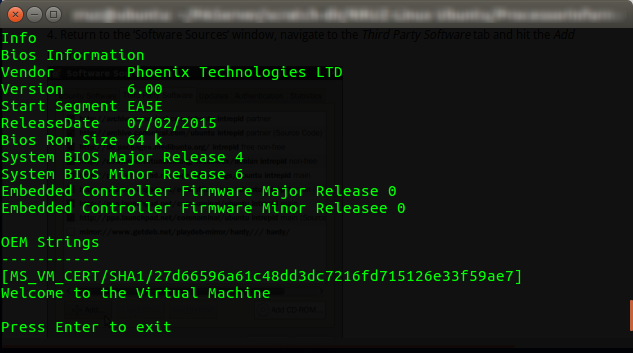

Now just a small note, the TSMBIOS library access to the SMBIOS data reading the /dev/mem device file (which provides direct access to system physical memory). So the applications which uses this library require being executed by an user with access to such file, typically a superuser.
Rodrigo.
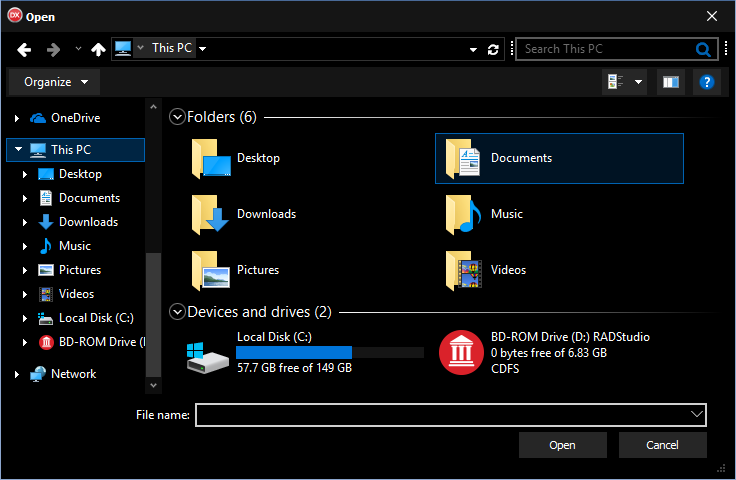
The new release of the VCL Styles Utils project now is compatible with RAD Studio 10.2 Tokyo .
This new version also improve the support for the Windows 10 custom Styles.
Check this TOpenDialog styled with the Windows 10 Black VCL Style.
Rodrigo.
There is a lot of resources of how ownerdraw a Delphi TListView, but most of them are deprecated and don’t take into account the VCL Styles and the StyleServices.
So on this post I will show you how you can ownerdraw a TListView to be compatible with the native Windows Look and feel and the VCL Styles.
First, there is lot of ways to ownerdraw a TListView , but on this post we will focus only in the OnDrawItem event, because offers more flexibility than the OnCustomDrawXXX events handlers .
The OnDrawItem is an event handler of type Vcl.ComCtrls.TLVDrawItemEvent
This is the definition of such event
TLVDrawItemEvent = procedure(Sender: TCustomListView;
Item: TListItem; Rect: TRect; State: TOwnerDrawState) of object;
Note: Before to use the OnDrawItem event you must set the value of the property TListView.ownerdraw to True.
Ok, So I’m planning create a TListview in report mode and draw some controls like a checkbox and progressbar. These controls must looks perfect under the Windows UI and the VCL Styles.
I will start creating the columns of the TListview in runtime (just for personal preference.). I’m using a TDictionary to hold the columns reference in that way I prevent create one variable per column and also I can access the columns by a Name.
procedure TFrmMain.AddColumns;

  Procedure AddColumn(const AColumnName : String; AWidth : Integer; AColumnType : TColumnType);
  begin
   FColumns.Add(AColumnName, LvSampleData.Columns.Add());
   FColumns[AColumnName].Caption := AColumnName;
   FColumns[AColumnName].Width   := AWidth;
   FColumns[AColumnName].Tag     := Integer(AColumnType);
  end;

begin
   FColumns  := TDictionary<string, TListColumn>.Create();
   AddColumn('Text', 150, ctText);
   AddColumn('Porc', 100, ctProgress);
   AddColumn('Text2', 150, ctText);
   AddColumn('Enabled', 100, ctCheck);
end;
Please pay attention to the Tag property of the Columns, I’m using this to store the type of the column (TColumnType is a custom type).
TColumnType = (ctText, ctCheck, ctProgress);
Next we need fill the listview with some sample data (This doesn’t requires much explanation right?).
const
 MaxItems = 100;
var
 LItem : TListItem;
 i : Integer;
begin
  Randomize;
  LvSampleData.Items.BeginUpdate;
  try
    for i := 0 to MaxItems - 1 do
    begin
      LItem := LvSampleData.Items.Add;
      LItem.Caption:= Format('Sample text', []);
      LItem.SubItems.Add(IntToStr(Random(101)));
      LItem.SubItems.Add(Format('Sample text 2', []));
      LItem.SubItems.Add(IntToStr(Random(2)));
    end;
  finally
    LvSampleData.Items.EndUpdate;
  end;
end;
And now I can start to draw the TListView items using the the OnDrawItem event.
First I will store a reference to the StyleServices function (In this way I’m avoiding call the same function again and again).
Note : The StyleServices method returns an instance of a TCustomStyleServices type, which allow to gain access to all the styling functionality of the current active style (Windows or VCL Style).
Next I will erase any previous content of the current row by filling with the current clWindow color.
Check how the clWindow const is used in the TCustomStyleServices.GetSystemColor function to return the current Window Background color.
procedure TFrmMain.LvSampleDataDrawItem(Sender: TCustomListView; Item: TListItem; Rect: TRect; State: TOwnerDrawState);
...
...
begin
  LStyleService  := StyleServices;
  if not LStyleService.Enabled then exit;

  Sender.Canvas.Brush.Style := bsSolid;
  Sender.Canvas.Brush.Color := LStyleService.GetSystemColor(clWindow);
  Sender.Canvas.FillRect(Rect);

  LRect := Rect;
Now I will iterate over all the columns of the Listview resolving the current column type, the text stored in the current item and calculating the bounds of the current item.
...
...
  for i := 0 to TListView(Sender).Columns.Count - 1 do
  begin
    LColummnType := TColumnType(TListView(Sender).Columns[i].Tag);
    LRect.Right  := LRect.Left + Sender.Column[i].Width;

    LText := '';
    if i = 0 then
      LText := Item.Caption
    else
    if (i - 1) <= Item.SubItems.Count - 1 then
      LText := Item.SubItems[i - 1];
....
....
Note : The OnDrawItem event is raised once per each row of the ListView, So you must draw all the items and subitems yourself).
Now depending of the column type (Text, CheckBox or ProgressBar) I will draw the item.
For the columns of type text (ctText), I check if the State of the item is Selected or Hot and Draw the highlight bar (using the TCustomStyleServices.DrawElement method) and finally the text is rendered using the TCustomStyleServices.DrawText function.
Check how the color of the text is selected depending of the state of the item.
      ctText:  begin

                  LDetails := LStyleService.GetElementDetails(tgCellNormal);
                  LColor := LStyleService.GetSystemColor(clWindowText);
                  if ([odSelected, odHotLight] * State <> []) then
                  begin
                     LDetails := LStyleService.GetElementDetails(tgCellSelected);
                     LColor := LStyleService.GetSystemColor(clHighlightText);
                     LStyleService.DrawElement(Sender.Canvas.Handle, LDetails, LRect);
                  end;

                  LRect2 := LRect;
                  LRect2.Left := LRect2.Left + ListView_Padding;

                  LTextFormat := TTextFormatFlags(DT_SINGLELINE or DT_VCENTER or DT_LEFT or DT_END_ELLIPSIS);
                  LStyleService.DrawText(Sender.Canvas.Handle, LDetails, LText, LRect2, LTextFormat, LColor);
               end;
For the checkbox columns, the process start in the same way, first check if the item is highlighted and then the bar is drawn.
Then I calculate the bounds of the checkbox and get the text for the column. (for this sample the Value 1 means checked otherwise means unchecked).
Now according to the value and the state of the checkbox is draw.
Please pay attention to how the the element to be drawn is selected depending of the current state and the current text.
      ctCheck: begin
                  if ([odSelected, odHotLight] * State <> []) then
                  begin
                     LDetails := LStyleService.GetElementDetails(tgCellSelected);
                     LStyleService.DrawElement(Sender.Canvas.Handle, LDetails, LRect);
                  end;

                  LSize.cx := GetSystemMetrics(SM_CXMENUCHECK);
                  LSize.cy := GetSystemMetrics(SM_CYMENUCHECK);

                  LRect2.Top    := Rect.Top + (Rect.Bottom - Rect.Top - LSize.cy) div 2;
                  LRect2.Bottom := LRect2.Top + LSize.cy;
                  LRect2.Left   := LRect.Left + ((LRect.Width - LSize.cx) div 2);
                  LRect2.Right  := LRect2.Left + LSize.cx;

                  if (LText = '1') then
                  begin
                    if ([odSelected, odHotLight] * State <> []) then
                      LDetails := LStyleService.GetElementDetails(tbCheckBoxCheckedHot)
                    else
                      LDetails := LStyleService.GetElementDetails(tbCheckBoxCheckedNormal);
                  end
                  else
                  begin
                    if ([odSelected, odHotLight] * State <> []) then
                      LDetails := LStyleService.GetElementDetails(tbCheckBoxUncheckedHot)
                    else
                      LDetails := LStyleService.GetElementDetails(tbCheckBoxUncheckedNormal);
                  end;
                  LStyleService.DrawElement(Sender.Canvas.Handle, LDetails, LRect2);
               end;
Finally for the progressbar columns, after of check the current state I draw the frame of the progress bar by using the tpBar element, then getting the current value for the column I calculate the bounds of the chunks to be draw. Then depending of the value I fill the progress bar with a solid color or with the element of the current style.
      ctProgress:
               begin
                  if ([odSelected, odHotLight] * State <> []) then
                  begin
                     LDetails := LStyleService.GetElementDetails(tgCellSelected);
                     LStyleService.DrawElement(Sender.Canvas.Handle, LDetails, LRect);
                  end;

                  LRect2   := ResizeRect(LRect, 2, 2, 2, 2);
                  LDetails := LStyleService.GetElementDetails(tpBar);
                  LStyleService.DrawElement(Sender.Canvas.Handle, LDetails, LRect2);

                  if not TryStrToInt(LText, p) then  p := 0;

                  InflateRect(LRect2, -1, -1);
                  LRect2.Right := LRect2.Left + Round(LRect2.Width * p / 100);

                  if p < 20 then
                  begin
                    Sender.Canvas.Brush.Style := bsSolid;
                    Sender.Canvas.Brush.Color := clWebFirebrick;
                    Sender.Canvas.FillRect(LRect2);
                  end
                  else
                  if p < 50 then
                  begin
                    Sender.Canvas.Brush.Style := bsSolid;
                    Sender.Canvas.Brush.Color := clWebGold;
                    Sender.Canvas.FillRect(LRect2);
                  end
                  else
                  begin
                    LDetails := LStyleService.GetElementDetails(tpChunk);
                    LStyleService.DrawElement(Sender.Canvas.Handle, LDetails, LRect2);
                  end;
                end;
This is the final result of the code


As you can see the list view is draw consistently under Windows or when a custom Style is used.
The full source code is available on Github.
 The Road to Delphi