
 The new version of Rad Studio include a very nice feature called VCL Styles, this functionality allows you to apply a skin (theme) to any VCL Form application. So in this post I will show you the basics about how load in runtime an embedded style or read the style file directly from the disk. besides as how you can easily create a new style.
Working with VCL Styles
You can add a VCL Style to your application directly from the Delphi IDE menu entry Project-> Options -> Application -> Appearance Selecting the styles which you want to include in your Application and choosing a default style to apply. when you select a style, this is stored in the exe as a resource of the type VCLSTYLE with a 80 kb size approx by style.

In order to work with the VCL Styles you must use the TStyleManager class located in the Themes unit and include the Vcl.Styles unit to enable the VCL styles support.
Registering a Style
To load (register) a VCL Style from a File you must use the LoadFromFile function of the TStyleManager class.
procedure RegisterStyleFromDisk(const StyleFileName: string);
begin
 try
   if TStyleManager.IsValidStyle(StyleFileName) then
     TStyleManager.LoadFromFile(StyleFileName); //beware in this line you are only loading and registering a VCL Style and not setting as the current style.
   else
     ShowMessage('the Style is not valid');
end;
And to load an style from a resource use the LoadFromResource or TryLoadFromResource
procedure RegisterStyleFromResource(const StyleResource: string);
begin
   TStyleManager.LoadFromResource(HInstance, StyleResource); //beware in this line you are only loading and registering a VCL Style and not setting as the current style.
end;
Setting a Style
To set in Runtime an already loaded (registered) style you must use the SetStyle(or TrySetStyle) procedure.
The SetStyle function has 3 overloaded versions
Use this version when you want set a registered style using his name
//class procedure SetStyle(const Name: string); overload;
TStyleManager.SetStyle('StyleName');
Use this version when you want set registered style using a instance to the style
//class procedure SetStyle(Style: TCustomStyleServices); overload;
TStyleManager.SetStyle(TStyleManager.Style['StyleName']);
And finally use this version when you has a handle to the style returned by the functions LoadFromFile and LoadFromResource
//class procedure SetStyle(Handle: TStyleServicesHandle); overload;
TStyleManager.SetStyle(TStyleManager.LoadFromFile(StyleFileName))
Finally using the above functions I wrote a simple app to register and set VCL Styles

Download the source code and binaries from here
Creating New Styles
The Rad Studio XE2 includes the VCL Style designer which is a very handy tool to edit and create new VCL Styles, you can call this tool from the IDE Menu Tools -> VCL Style designer or executing directly (the file VclStyleDesigner.exe) form the bin directory where the Rad Studio is installed. this is an image of the tool

The main element is the image under the images category, which define how the control will be drawn, also you can edit every single aspect of the Style like the buttons, checkboxes, scrollbars and so on.
The Rad Studio XE2 only includes 5 predefined styles in the <Documents>\RAD Studio\9.0\Styles folder, But you can easily create your own styles using a predefined theme as template, check the next list of steps to create a New Style.
- First from the VCL Style designer load the style to use as template using the File->Open option
- Now go to the Image->Export option to save the image as png

- Then Load the Image in your prefered image editor and play a little, for example changing the hue and saturation of the image.

- Now back in the VCL Style designer go to the option Image->Update , select the modified image and then press ok in the dialog

- Then go to the Style->Assign Colors option to let the application adjust the colors of the style according to the new image.
- Now press F9 or Test->Style to check the result

- Finally modify the name of the Style and use the option File->Save As to store your new creation.
Following these simple steps in a few minutes I create a set of new styles ready to use.


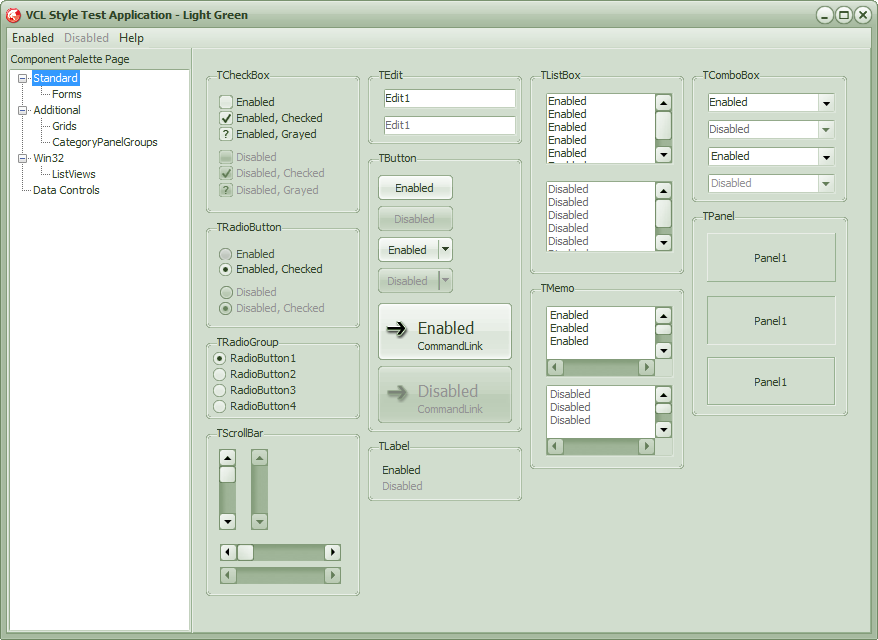


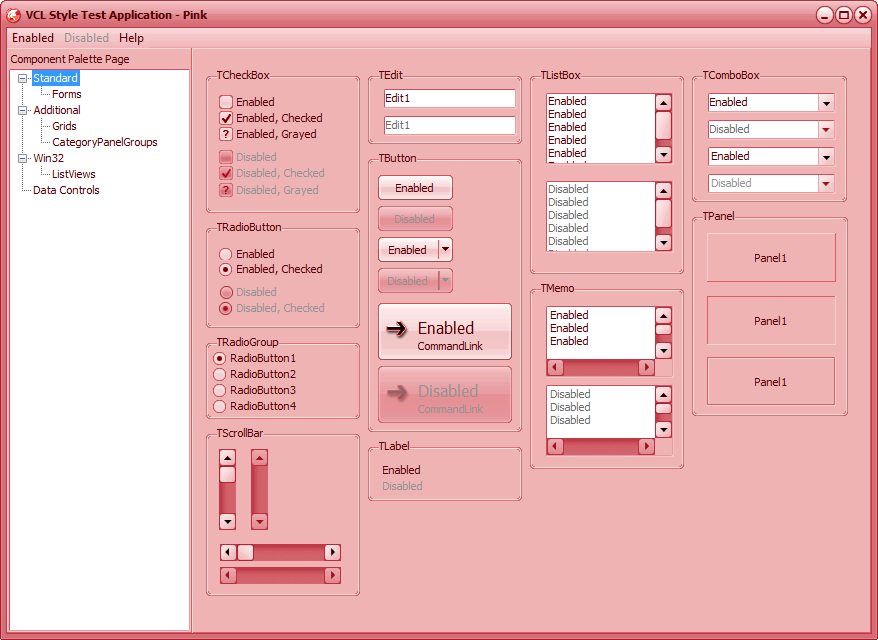


Download the Styles from here
Tip : you can copy the styles to the <Documents>\RAD Studio\9.0\Styles folder and these will be recognized by Rad Studio XE2 when your open the Project-> Options -> Application -> Appearance option)
 The Road to Delphi


